
Creating a campaign takes a few minutes. Most settings can be changed later, so make your best guess and adjust once you see real proposals.
Create the campaign
- From your dashboard, click New Campaign.
- Enter a name, game system, and optional description.
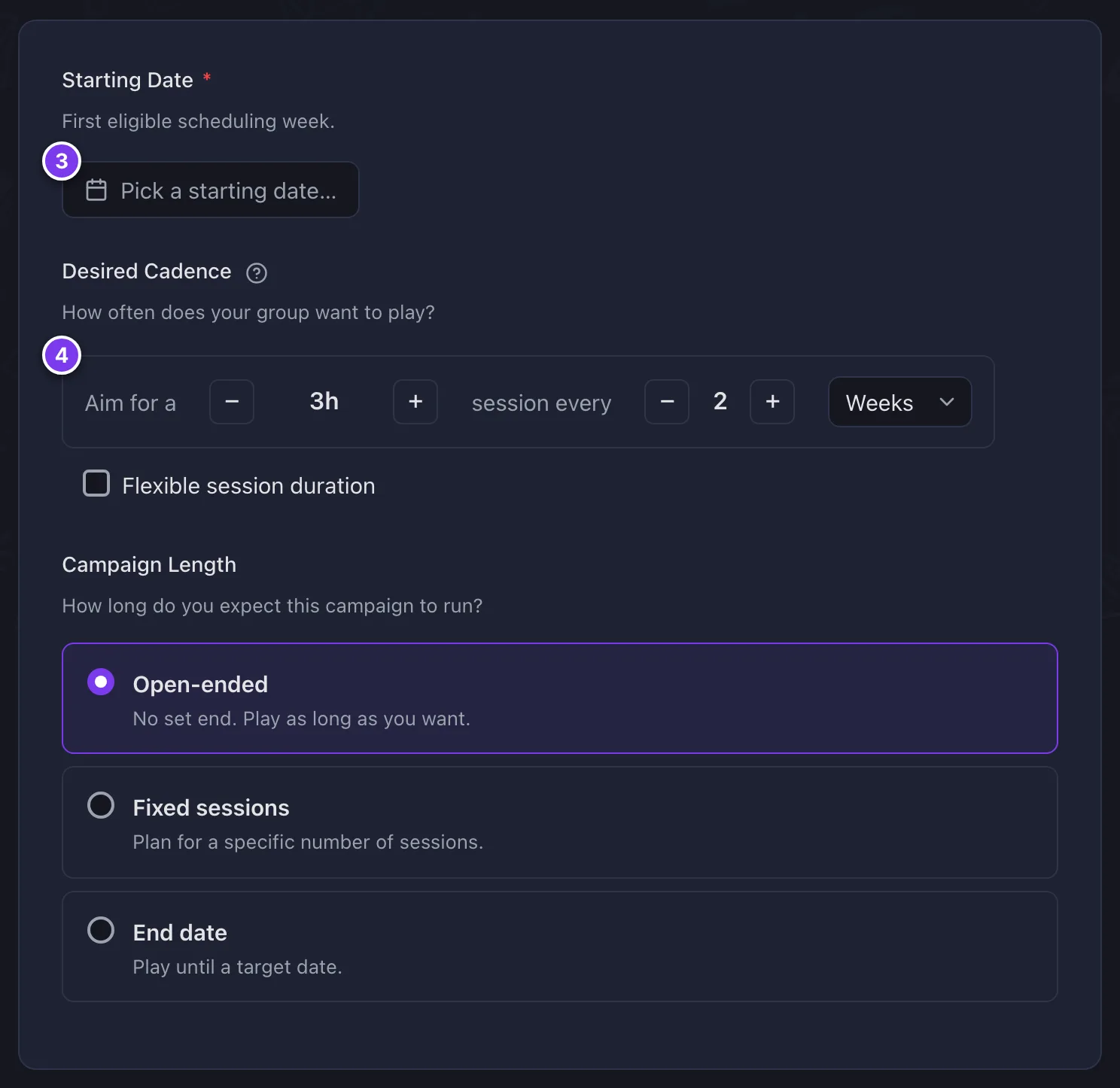
- Set a start date. This is the first week Roll Call may schedule into.
- Choose a cadence and an expected campaign length.
- Set the quorum, schedule windows, priority, and scheduling style.
- Review the summary and click through to finish.

Cadence and length
Desired cadence is how often the group plays, in weeks or months: weekly, every two weeks, monthly, and so on. Weekly is the shortest cadence. Roll Call spaces proposals accordingly, but when you confirm you can still place sessions closer together, even two in one week.
You can change the planned number of sessions or end date later in campaign settings, but not the kind of length you chose. Once the campaign has nothing left to schedule, the campaign page offers Extend. It raises the number of sessions or moves the end date later.
Quorum
How many players a session needs. It does not count you. See quorum.
Schedule windows
Which days the campaign can play, and the hours a session must fit inside on each. See session schedule windows.
Priority and style
Priority sets whether sessions can move later than the cadence (Attendance), or keep the rhythm of your start date (Schedule). See how Roll Call picks session times.
Scheduling style sets how player availability is weighed.
- Fair spreads attendance across the group.
- Loyal favours the same core group each session.
- Custom uses a player order you set by hand.
Available styles depend on your plan. See plans and the free trial.
Round size
Schedule round size is how many sessions Roll Call proposes at a time. Book more at once to plan further ahead, or fewer to stay flexible. When you confirm, you can add or remove sessions to match how far ahead your group answered.
You can change it later here, or in the Reschedule dialog when no sessions are booked ahead. Either way it becomes the campaign's round size, so the rounds Roll Call starts for you use it too.
After you finish
Creating your first campaign starts your free trial. No card is required. Next, invite your players.
Starting scheduling
A new campaign opens in a recruiting stage. Share the invite link and approve players. Once at least two have joined, click Begin scheduling on the campaign page when your party is ready. Roll Call then asks the party for availability and starts proposing times. If no date is open yet, scheduling still begins, the panel says why, and Roll Call asks the party once a date opens.
Nothing is scheduled and no availability is requested until you begin. If your quorum is higher than the number who joined, Roll Call checks with you first and lowers it to match if you confirm.