Connecting Google Calendar lets Roll Call read your busy times, so your availability stays current without manual updates. It is optional.
Connect your calendar
- Go to My Availability.
- Under Calendar Sync, click Connect Google Calendar.
- Confirm the permission Google asks for.

Connected accounts
A Google account you connect is added to the Roll Call account you are signed in to, whatever email it uses.
A Roll Call account holds one Google account, and a Google account connects to one Roll Call account. Roll Call refuses any other connection.
Connecting a Google account for the first time, or removing a login under Connected Accounts on your Profile, needs a sign-in from the last 10 minutes. If Roll Call asks, sign out, sign back in, and try again. Reconnecting an account you already hold does not need it.
Choose which calendars count
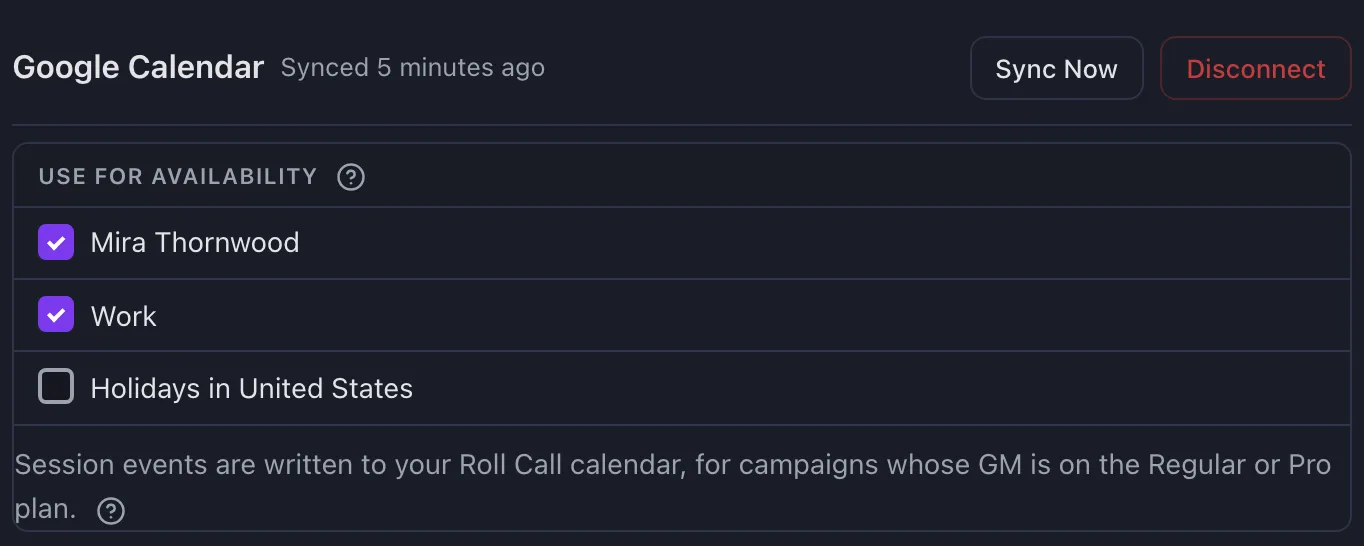
Most Google accounts have several calendars. After connecting, pick which ones Roll Call should treat as busy time.
Turn off calendars that should not block a game night, such as a subscribed holidays or birthdays feed. An all-day feed left on is a common reason someone shows as unavailable every day.
When it syncs
You can sync manually with Sync Now beside the account under Calendar Sync.
Roll Call looks at roughly a 90-day window, which is further ahead than most groups schedule.
What is visible
Roll Call reads your events, titles included, to work out when you are busy. Imported events are shown only to you. See what your GM can see.
Calendar write-back
For campaigns whose GM is on Regular or Pro, sessions you are attending are added to a dedicated Roll Call calendar in your account. Roll Call only creates, updates, and deletes events on that calendar and never changes your personal ones. See plans and the free trial.
Disconnecting
Disconnect from the same section of My Availability. The events Roll Call imported are removed, and your availability falls back to the windows you set by hand.
If you use Auto-RSVP, disconnecting your last calendar turns it off, and your campaigns go back to awaiting your response.
If sync stops working
Google sometimes revokes access after a password change or permissions review. When it does, Roll Call emails you and shows a Sync error beside the account in My Availability. Click Reconnect there to fix it.